
Open up any desktop and pull out the motherboard. What you will see is one piece of printed circuit board (PCB) on which every other component depends. Nothing else in the case works without it.
The motherboard doesn’t do the actual computing, but connects and enables communication between all major hardware and provides interfaces for data management and power distribution.
If you feel lost staring at the motherboard components, let’s get that sorted. This guide offers a plain-English walkthrough of every major component on this circuit board and the job it does in your PC.
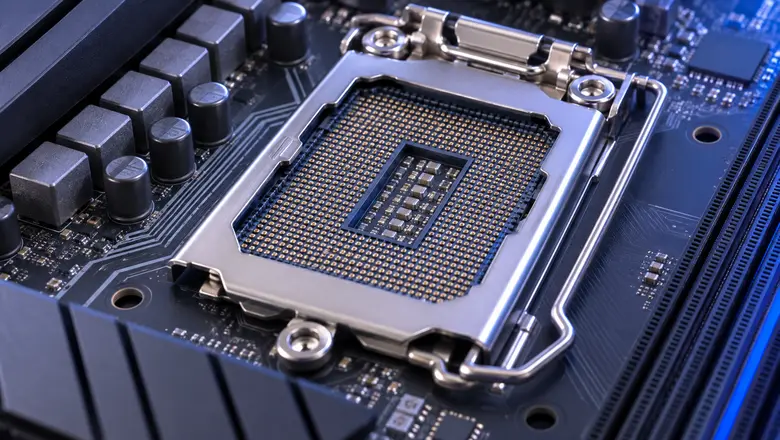
CPU Socket
The CPU socket acts as the physical interface between the motherboard and processor chip. It usually uses contact points or pin grids to conduct electrical signals for power supply and data transfer.
The CPU socket type determines which processors are attachable to the motherboard. Modern Intel motherboards use LGA sockets, which place the contact pins on the motherboard. Older AMD systems, including AM4, use PGA sockets with pins on the processor, while newer AM5 platforms have switched to the LGA design.
Chipset
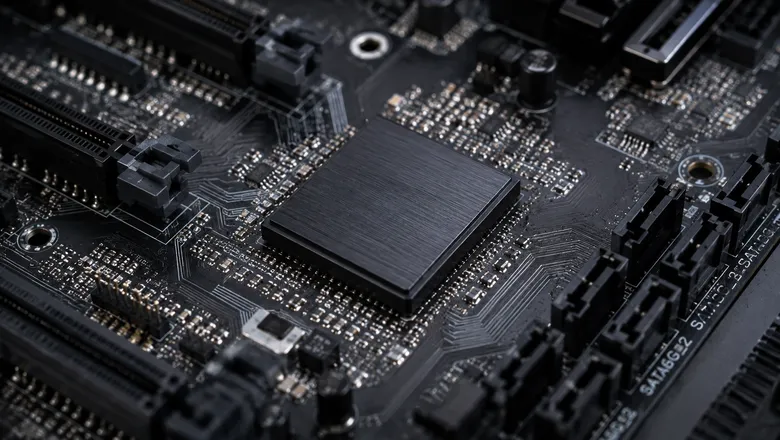
The chipset is the traffic controller for the entire motherboard. It manages communication between the CPU and everything connected to it, including storage drives, USB ports, networking, PCIe expansion cards, and more.
Your choice of chipset determines your upgrade options, which is why two boards with the identical CPU socket can offer different numbers of USB ports, PCIe lanes, or M.2 slots. Chipset pins are usually so fine-pitched that engineers rely on breakout boards just to test and validate them during development, long before they are soldered onto a finished motherboard.
Older boards split this job between a northbridge and southbridge chip, but most of that work has since been integrated into the processes, which leaves today’s chipsets to handle I/O and connectivity.
RAM Slots (DIMM Slots)
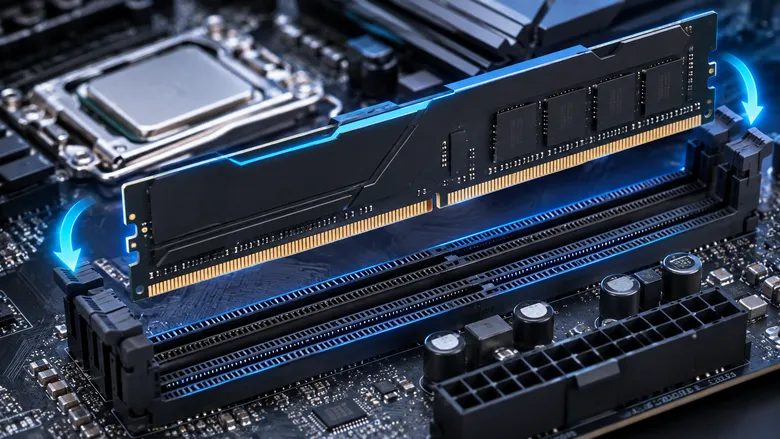
The third PC motherboard component is a RAM slot (or DIMM slot) that holds your memory modules. Most consumer boards come with two or four slots and support dual-channel configurations, with DDR5 now standard on newer platforms.
RAM stores the data your CPU needs immediate access to, which ensures that the OS and applications run smoothly. PCs with more RAM can hold and process larger programs and files, which leads to enhanced performance. So, the number of slots and supported speeds determine how smoothly your system multitasks.
PCIe Expansion Slots
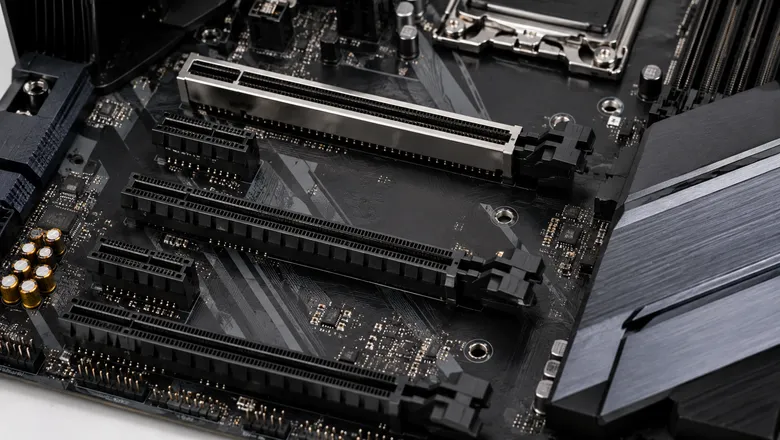
These computer motherboard components handle add-in cards. The obvious example is graphics cards, but they can also install Wi-Fi adapters, extra storage controllers, etc. Their role is to allow installed expansion cards that add new functionality to the PC.
The number and generation of PCIe slots on a board dictate what you can physically add to your system later. For example, the PCIe x16 slot is usually utilized for a graphics card, while PCIe x1 or x4 slots can install Wi-Fi adapters, capture cards, sound cards, or storage controllers.
Storage Connectors (M.2 and SATA)
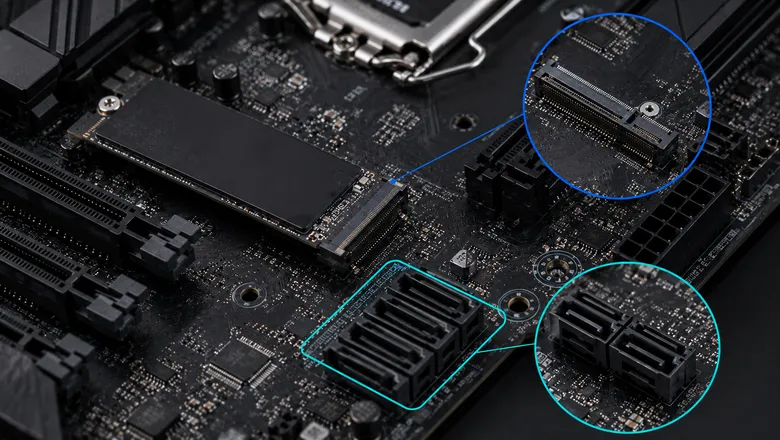
The next PCB component is the storage connector that connects your drives to the board. M.2 slots handle modern NVMe SSDs directly on the board with no cables involved. They are small, slot-like ports flush against the board where a stick-shaped SSD is inserted flat and held with a screw or latch.
SATA ports connect traditional 2.5″ SSDs and hard drives via cable. They are wide, L-shaped rectangular ports that require a separate data cable to connect to a drive. They are usually placed on the edge of the motherboard.
Higher-end boards pack in more M.2 slots, since that becomes the primary storage interface for most builds.
VRM (Voltage Regulator Module)
Another important PC motherboard component is VRM (Voltage Regulator Module). Its job is to supply stable and clean power to the CPU. It takes the power from the power supply and turns it into the exact voltage the CPU needs.
The VRM relies on a mix of parts working together to fulfill its job. This includes a PWM controller to regulate output, MOSFETs to switch current on and off at high speed, and inductors and capacitors to smooth out voltage and filter noise.
High-quality VRMs keep the system stable, especially during heavy workloads and gaming. You might also see large heatsinks in gaming motherboards just to keep the VRM cool.
Assembling this mix of through-hole and surface-mount parts into one packed area makes the VRM one of the most demanding sections of a motherboard PCBA. A professional PCBA partner like LHD Tech ensures proper thermal management and reliable solder quality across these critical power paths.
BIOS/UEFI Chip
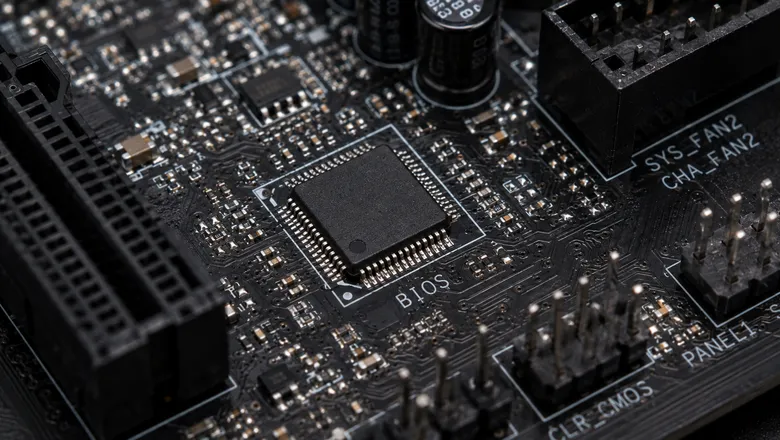
This small chip holds the motherboard’s firmware, which is the set of instructions that runs the instant you hit the power button, well before your operating system ever loads. It’s responsible for initializing your hardware and running basic diagnostics, then transferring control to the OS to take over from there.
Older boards ran on traditional BIOS, a basic, text-based interface. Most modern motherboards have moved to UEFI (Unified Extensible Firmware Interface), which does the same core job but with a proper graphical menu, faster boot times, support for larger drives, and more configuration options for hardware settings.
No matter which version of your board you use, this chip lets you access boot order settings and overclocking options from a menu that operates independently of Windows or Linux.
CMOS Battery
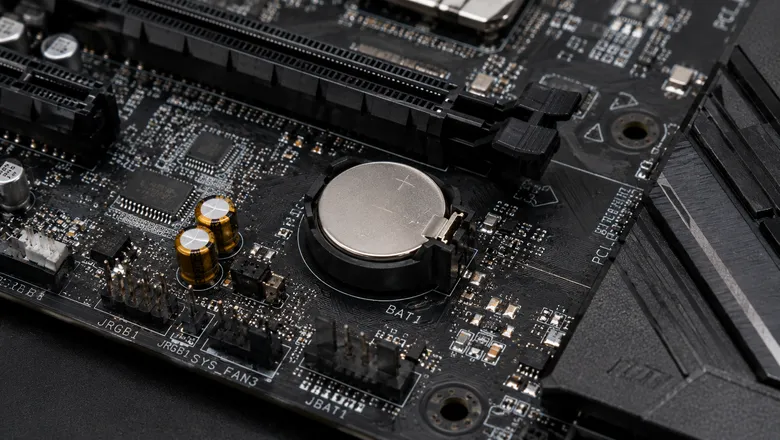
Ever wondered how the PC keeps its clock accurate and remembers your BIOS settings even after being unplugged for weeks? That’s the CMOS battery at work.
This computer motherboard component is a small coin-cell battery that keeps those settings alive when the system has no external power. The computer can boot without it, but the system clock and BIOS settings will reset every time the power gets disconnected. This would become annoying if you keep unplugging your PC regularly.
Power Connectors
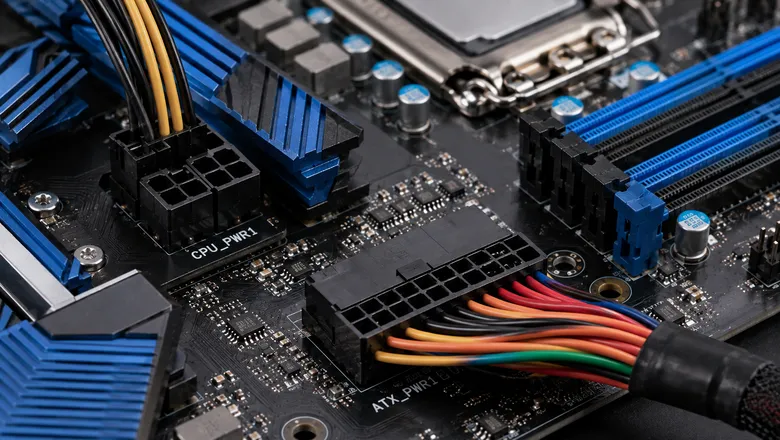
As the name implies, power connectors transfer electricity from the power supply to the board and its components.
There are two main power connectors:
- 24-pin ATX connector
- 4- or 8-pin connectors that feed power specifically to the CPU.
You cannot have motherboard operation without these connections.
Fan Headers
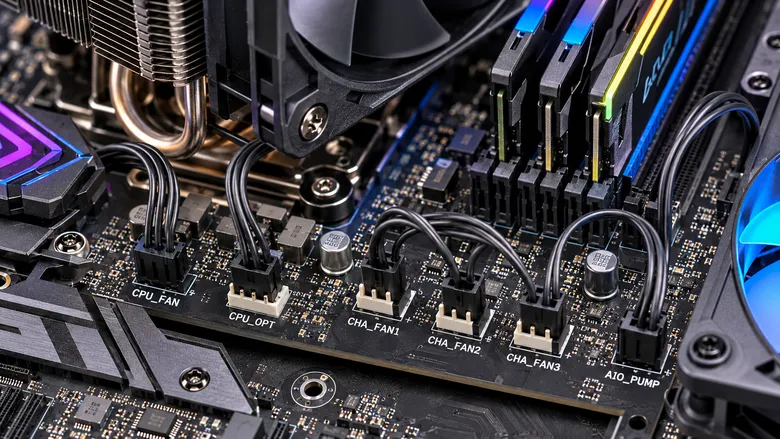
These are small pin connectors spread across the board to case fans and CPU coolers. They are also sometimes used as pump headers to facilitate liquid cooling systems.
The right fan configuration helps keep components at safe temperatures and enhances the system’s reliability. So, more headers give you more flexibility over your cooling setup without needing splitter cables everywhere.
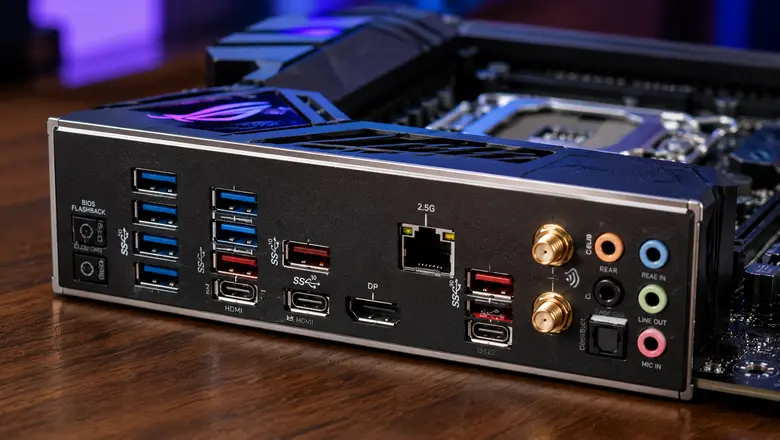
Rear I/O Ports
These motherboard components provide external connections for your peripherals and electronic devices. They are located on the back of the PC case. They commonly include:
- USB ports
- USB-C ports
- Ethernet
- Audio jacks
- HDMI or DisplayPort
Higher-end models may add built-in Wi-Fi antenna connectors, optical audio, faster USB ports, or a BIOS flashback button.
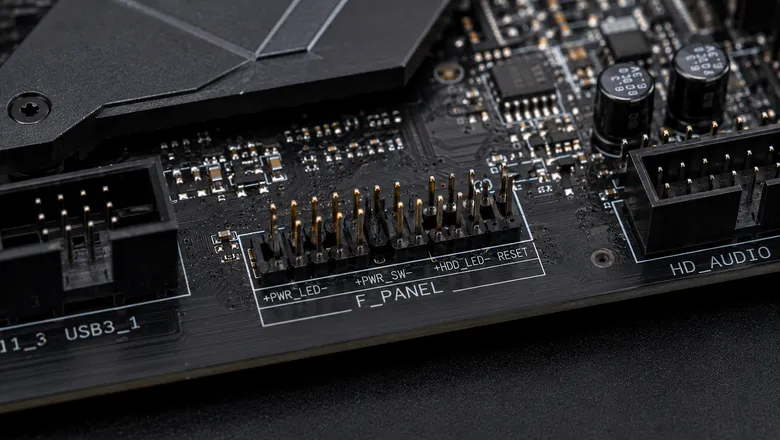
Front Panel Header
Last on our list of PC motherboard components is a small set of pins that connect the motherboard to the computer case. These small connectors control the power and reset button, power LED, front USB ports, and front audio jacks. They let the case’s buttons and indicators talk to the motherboard.
Read more:
Bottom Line
The motherboard is a mother in the truest sense of the word. It’s the board to which every other component owes its place. It holds the CPU, RAM, storage, and power delivery together under one roof.
The CPU socket and chipset reflect which platform you are on. RAM and PCIe slots reflect how far you can expand. Similarly, the VRM reflects how reliably your system can perform under real load. Master this computer motherboard components guide to know what each piece is actually doing, so you can choose the right board and troubleshoot issues correctly.
Whether it’s a high-end gaming rig or a custom embedded system, every motherboard traces back to the same foundation, i.e., a bare PCB brought to life through precise PCBA (Printed Circuit Board Assembly).
LHD Tech offers full-service PCB assembly to bring boards like this to reality, with no minimum order quantity and ISO, UL, and RoHS-certified quality control at every step. So, feel free to contact us for support with your next build.
FAQs
What are the main components of a motherboard?
The key components include the chipset, CPU socket, PCIe slots, RAM slots, BIOS/UEFI chip, VRM, storage connectors, CMOS battery, fan headers, power connectors, and rear I/O ports. Every component handles a specific job in connecting and powering the system.
What is the most important component on a motherboard?
There is no single answer, but the CPU socket and chipset are considered the most critical, as they determine which processors and features your entire platform supports.
How do I know which motherboard is compatible with my CPU?
Check that the CPU socket type (like LGA or AM5) matches your processor, and confirm the chipset supports your CPU generation.
What’s the difference between BIOS and UEFI?
BIOS is the older and text-based firmware found on legacy motherboards, while UEFI is its modern replacement. UEFI also offers a graphical interface, faster boot times, support for larger storage drives, and more advanced configuration options.